
Looking up an order number while filling out a return form usually means leaving the form, searching your inbox, and coming back. Google says Chrome’s enhanced autofill can now suggest details from Gmail in that situation, including order numbers, tracking details, and flight bookings. The rollout began October 28, 2026. This is not a feature every Chrome user can switch on today: Google limits the initial rollout to eligible US users of Gemini in Chrome who have enabled Personal Intelligence.
The time-saving part is straightforward. The more important question is whether you want an email-derived suggestion in a particular form. Here is what to check before trusting it.

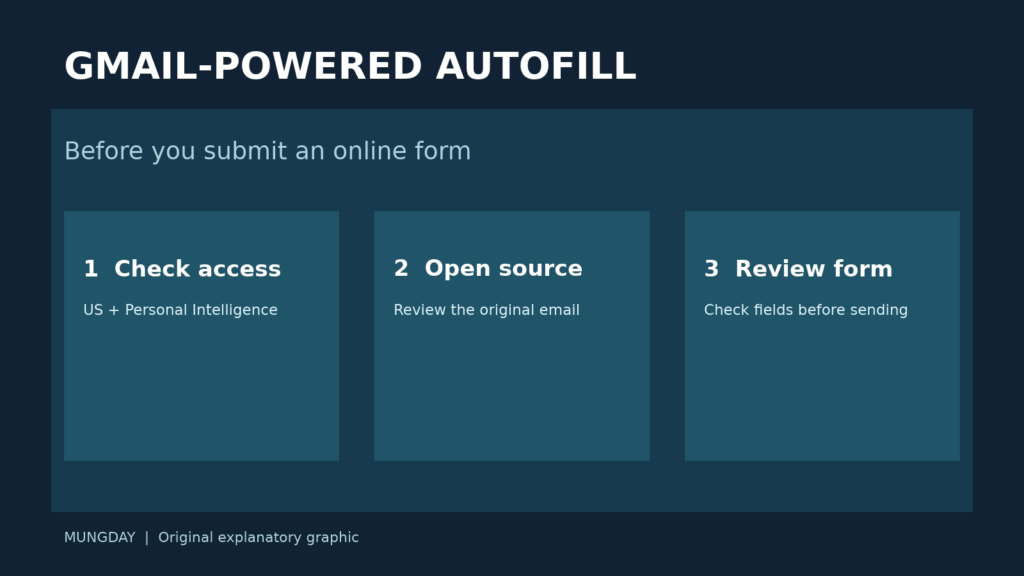
First, check whether the feature is available to you
Google’s Chrome Help instructions say enhanced autofill is currently available on desktop, Android, and iOS to US Gemini in Chrome users aged 18 or older who opted into Gemini Personal Intelligence. The rollout is gradual, so even an eligible account might not show it immediately. If you live outside the US or have not opted in, do not assume a Gmail-based suggestion is active simply because ordinary address or payment autofill works.
On a computer, open Chrome Settings, choose Autofill and passwords, then Enhanced autofill. Look for the Find and fill with Gemini switch. Google says this is where you can turn the feature on or off. Do not confuse it with the separate save-and-fill switches for ordinary contact or payment information.
Check the source of a suggestion, not just its convenience
When an eligible form offers a Gemini suggestion, Chrome Help says it appears in a dropdown with a Gemini spark icon. To inspect where a suggested detail came from, open that dropdown, hover over the suggestion, and use the link to the original source email. Compare the order, reservation, or tracking detail with the form’s request. This is especially useful if you have several similar orders or a flight booking that changed. Treat the suggestion as a starting point, not a verified answer.
Google also explains that you can remove an unwanted or outdated suggestion from Chrome through the suggestion menu. Removing it there does not delete the email; the Chrome Help page says deleting the original email removes the suggestion. If a piece of information is wrong, correct it at its source or enter the right value manually rather than assuming Chrome will edit the Gmail-derived data for you.
Review the form before you submit
Before sending a return request or booking form, check the recipient website, the filled fields, and any personal details you did not intend to share. An autofill suggestion saves typing; it does not decide whether that site needs the information. If the email source does not match the transaction, leave the field empty and look up the right message yourself. Google says sensitive data is encrypted and that you can manage what enhanced autofill accesses in Chrome settings, but you still control what you submit to a third-party form.
For a broader look at how to keep AI-assisted browser tasks within your intended scope, see our Gemini in Chrome workflow overview. The practical rule for this feature is simpler: check availability, check the original email, and check the completed form.
Sources: Google Chrome announcement (October 28, 2026); Google Chrome Help: Fill out forms automatically.